Receipt Scanning and OCR: Best Practices for Cleaner Purchase Records
Improve receipt scans and OCR results with practical tips for lighting, review, attachments, and structured purchase records.
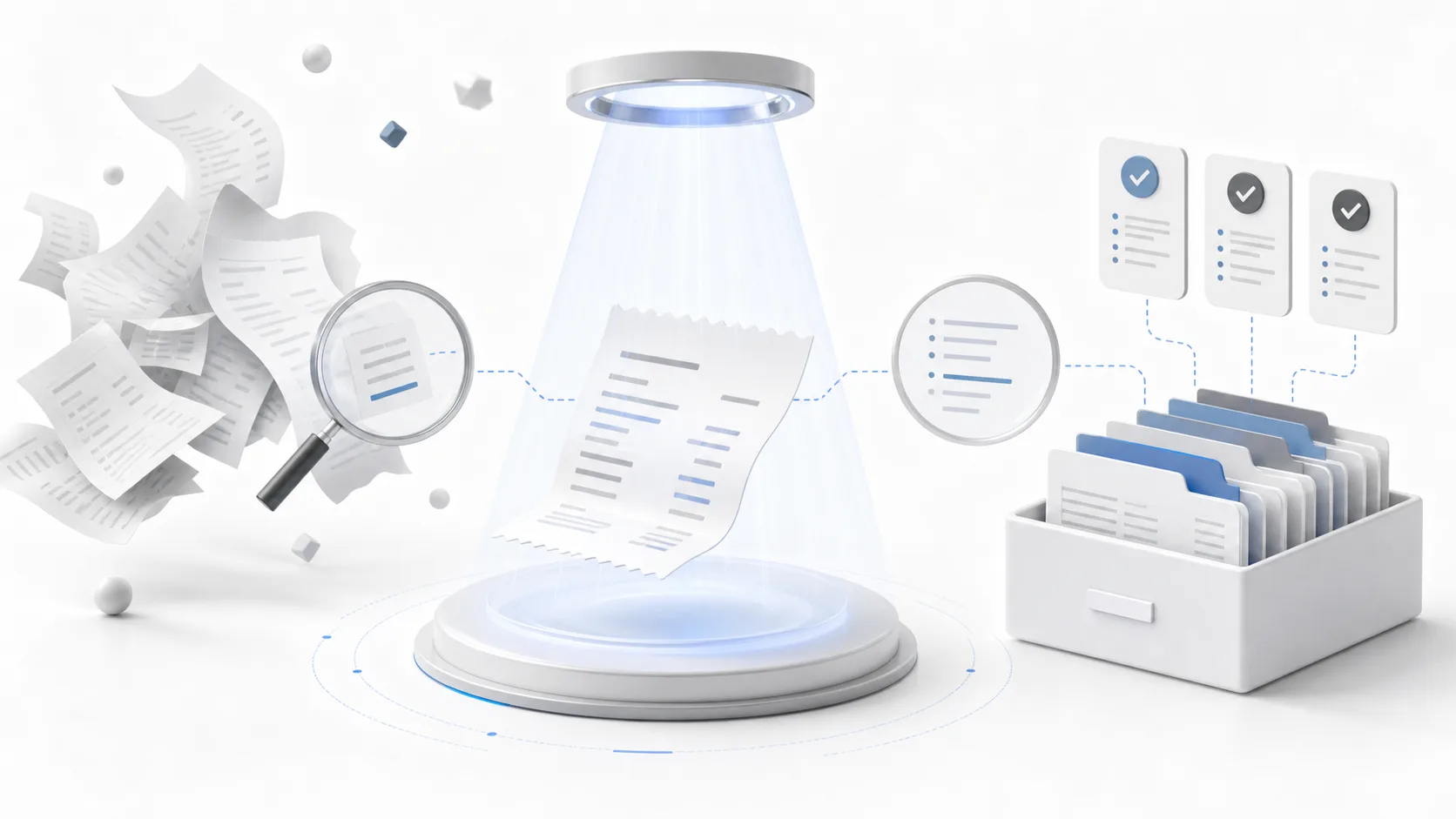
This guide is useful if
- Receipt scans are blurry, folded, too dark, or hard for OCR to read.
- OCR suggestions save time but still need review before the record is trustworthy.
- You want structured records, not just a folder full of receipt photos.
Quick wins
- Use even lighting and capture the full receipt edge to edge.
- Attach a PDF or email receipt when it is cleaner than a photo.
- Review OCR suggestions for date, merchant, and total before saving.
- Add warranty, return, category, and serial number details only where useful.
Common mistakes to avoid
- Trusting OCR suggestions without reviewing important fields such as purchase date, merchant, total, or category.
- Scanning in poor lighting or cropping receipts so tightly that key details are missing or unreadable.
- Keeping scans as loose photos instead of turning them into structured records with dates, attachments, and optional reminders.
Practical next step
Use OCR as a first draft rather than the final record. Scan the receipt, review the fields that matter for future proof, attach a cleaner PDF when available, and save the structured record while the purchase is still fresh.
OCR helps, but review still matters
Optical character recognition can save time by suggesting fields from a receipt scan, but receipts are inconsistent. Fonts, fading ink, folded paper, glare, multiple totals, and long item lists can confuse automated extraction.
The best workflow is to scan quickly, let OCR suggest useful fields, then review the important details before saving.
Capture better receipt images
A clean receipt image improves both human review and OCR quality. Use good lighting, flatten the receipt, avoid glare, and capture the whole document. If the receipt is long, make sure the important information is readable.
StoreProof supports receipt photos, scans, PDFs, and files, so you can attach the format that best represents the purchase proof.
- Use even lighting and avoid shadows
- Keep the receipt flat and fully visible
- Review OCR suggestions before saving
- Attach PDFs or email receipts when they are cleaner than photos
Structure matters more than perfect OCR
Even perfect OCR is less useful if the resulting record is not searchable. The key is turning the scan into a purchase proof with the fields you will need later: date, category, warranty date, return deadline, serial number, and notes where relevant.
When manual entry is better
Manual entry is often faster for short records or receipts with poor print quality. A good receipt app should support both scanned and manually entered proofs, because the best workflow depends on the purchase.
Use StoreProof for purchase proof
StoreProof helps you keep receipts, warranty dates, return windows, serial numbers, notes, and attachments organized across iPhone, iPad, and Mac.
Download StoreProof